How to organize your inbox and stay sane?
The number of incoming emails can be overwhelming:
- an interview invitation,
- a work meeting time has changed,
- a distant friend from Europe asks you to rate his new car,
- and (oh no) another promotional email from a service you no longer use.
It can drive you crazy!
Yes.
Or it doesn’t have to.
To prevent your inbox from turning into chaos, Gmail offers a flexible and convenient system of “categories” and “custom labels”.
What are “Categories”?
These are automatically created groups where Gmail, using machine learning, moves your incoming emails.
This allows you to separate promotional and newsletter emails from personal and work messages and focus on truly important notifications.
Main categories
- Primary: Emails from friends, family, and other personal conversations
- Social: Notifications from social networks, dating apps, and similar services
- Promotions: Advertising emails and news
- Updates: Receipts, bills, and other automatically sent emails
- Forums: Messages about new posts on forums
How to manage email “Categories”?
Moving an email to the correct category
Gmail already automatically sorts all incoming emails — you don’t need to do it manually.
But if an email was not assigned to the correct category automatically, or was moved to the wrong one by mistake, you should:
1. Select the email:

2. Click the “Move to” icon:

3. Choose the category you want to move the email to:

Category customization
You can customize how your categories appear based on your own preferences.
How to hide a category
To remove categories from the menu on the left side of the screen:
1. Click the three dots next to the category you want to hide:

2. Under “Show in label list”, choose “Hide”:

Do not pay attention to the “Color” and “Show in message list” options in this menu — they only work if you filter messages by the #all tag, which makes your inbox inconvenient and cluttered.
How to show a category
To display categories in the menu on the left side of the screen:
1. Click “Settings”:

2. Go to “Advanced settings”:

3. Open the “Labels” tab:

4. Scroll to the “Categories” section and click “Show” next to the desired category:

Searching by categories
Use this list for advanced category search:
- Primary:
primary - Social:
social - Promotions:
promotions - Updates:
updates - Forums:
forums
How to include a category in search
1. Click the Gmail search bar:

2. Enter: category:{category_name}

3. Press Enter to see all results.
How to exclude a category from search
1. Click the Gmail search bar:

2. Enter: -category:{category_name}

3. Press Enter to see all results.
What are “Custom labels”?
These are groups where you can manually move your incoming emails.
Unlike categories, each email can have multiple labels, which allows very flexible organization.
This makes it easy and fast to search within specific labels without manually browsing through many emails.
How to manage “Custom labels”?
Creating a new label
To create a new label or sublabel:
1. Scroll the left menu to the “Labels” list and click the plus icon:

2. Enter the name of your label,
3. If you want to create a sublabel, select an existing parent label:

4. The new label or sublabel will appear in the left menu under “Labels”.:

Moving an email to the correct label
1. Select the email:

2. Click the “Move to” icon:

3. Choose the label you want to move the email to:

Label customization
How to hide a label
! Important: you can only hide a parent label, not child labels.
To remove a label from the left menu:
1. Click the three dots next to the label you want to hide:

2. Under “Show in label list”, choose “Hide”:

Do not pay attention to the “Color” and “Show in message list” options — they only work with the #all filter and make the inbox cluttered.
How to show a label
To display a label in the left menu:
1. Click “Settings”:

2. Go to “Advanced settings”:

3. Open the “Labels” tab:

4. Scroll to the “Labels” section and click “Show” next to the desired label:

Searching by labels
How to include a label in search
1. Click the Gmail search bar:

2. Enter: label:{label_name}, but if searching in sublabels, use: label:{parent_label_name/child_label_name} :

3. Press Enter to see all results.
How to exclude a label from search
1. Click the Gmail search bar:

2. Enter: -label:{label_name}, but if excluding a sublabel, use: -label:{parent_label_name/child_label_name} :

3. Press Enter to see all results.
How to delete all emails from a specific category?
To delete emails from specific categories, I offer my solution – a “Delete Gmail Emails“ service.
How does it work?
1. Click the “Delete Emails” button:

2. Then sign in to Google and grant access to your Gmail account through the certified service – “Mail Application for Gmail™”.
Fun fact for those interested: the service was originally created for the Gmail App extension, but now it can be reused in any project that requires access to the Gmail API.

3. Next, you will see a list of system categories and folders you created. Choose the ones you want to delete from (all are selected by default):
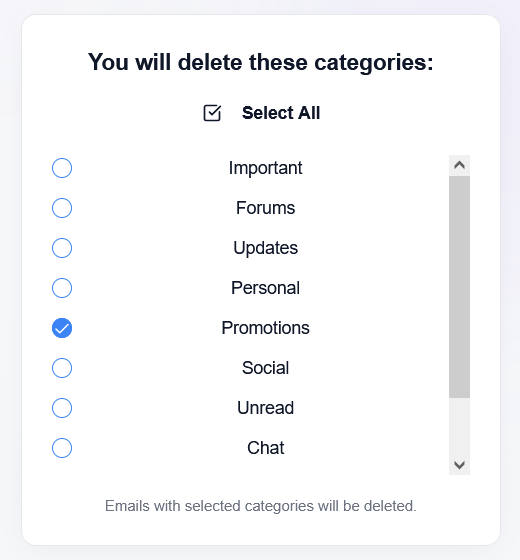
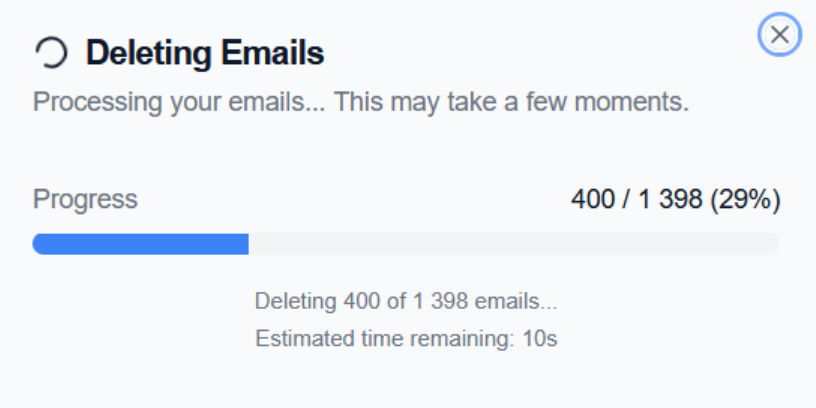
4. If there are emails in the selected categories, they will start moving to the Trash. You will see a progress bar that gradually fills in batches of 100 emails:
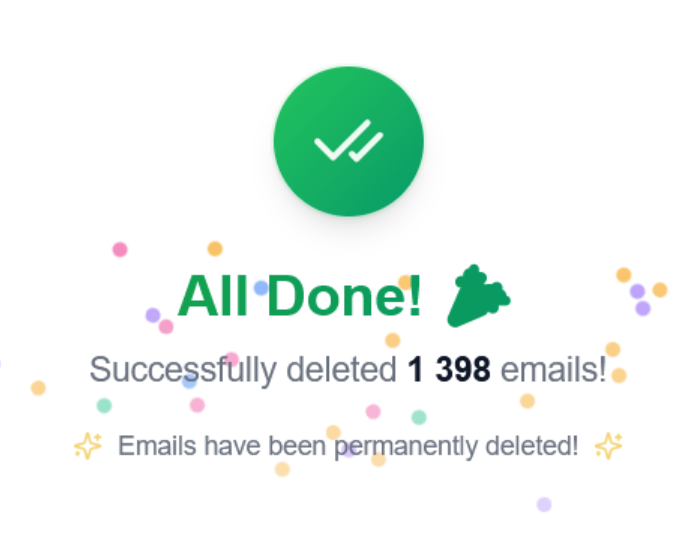
5. When processing is complete, you will see fireworks and a success message:
6. If there are no emails in the selected categories, you will see a corresponding message: