How to protect yourself from unwanted emails?
Gmail specialists implement some of the most advanced spam protection mechanisms on the market, using machine learning supported by user actions:
- Gmail sends unwanted (in its opinion) emails to Spam.
- If the user still sees an unwanted email:
- They mark it as “Spam”.
- Gmail will not only send all emails from this sender to Spam, but will also mark similar emails as unwanted more often.
- If the user finds that an important email was sent to Spam:
- They mark it as “Not spam”.
- Gmail will no longer send similar emails to Spam.
How does Gmail assess the danger of emails?
When analyzing emails, Gmail evaluates the following components:
- Sender reputation, which depends on:
- IP address and domain, which have their own “trust rating”: emails from phishing domains and/or suspicious IP addresses are more likely to be marked as unwanted
- User feedback:
- Frequent spam complaints (more than 0.1–0.3% of all sent emails) or instant deletions quickly reduce the sender’s reputation
- Opening emails and/or marking them as “Not spam” are considered positive signals and slowly but steadily improve the sender’s reputation
- Technical (authentication) parameters of the sender through:
- SPF (Sender Policy Framework) — verifies that the sender’s mail server is authorized to send emails from this domain
- DKIM (DomainKeys Identified Mail) — verifies that the email content was not modified during transmission using cryptographic signatures
- DMARC (Domain-based Message Authentication, Reporting, and Conformance) — determines what to do with emails that fail SPF/DKIM checks: reject them or place the sender in quarantine
- Email content, analyzed using the company’s internal algorithms and machine learning.
How to work with spam in Gmail?
How to mark an email as spam
1. Select the unwanted email:

2. Click “Mark as Spam”:

3. If necessary, confirm your action:

How to restore an email from the “Spam” folder
4. Open the “Spam” folder:

5. Select the required email:

6. Click “Not spam”:

7. The email will be moved back to the Inbox.
How to delete all emails from a specific category?
In some cases, it is easier to permanently delete promotional emails than to move senders to Spam or look for an unsubscribe option.
To delete emails from specific categories, I offer my solution – a “Delete Gmail Emails“ service.
How does it work?
1. Click the “Delete Emails” button:

2. Then sign in to Google and grant access to your Gmail account through the certified service – “Mail Application for Gmail™”.
Fun fact for those interested: the service was originally created for the Gmail App extension, but now it can be reused in any project that requires access to the Gmail API.

3. Next, you will see a list of system categories and folders you created. Choose the ones you want to delete from (all are selected by default):
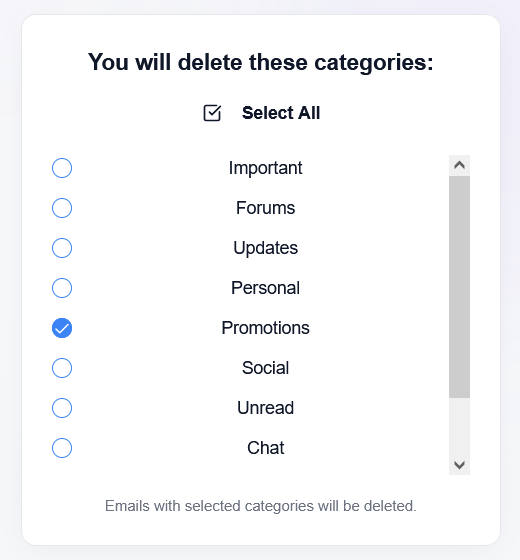
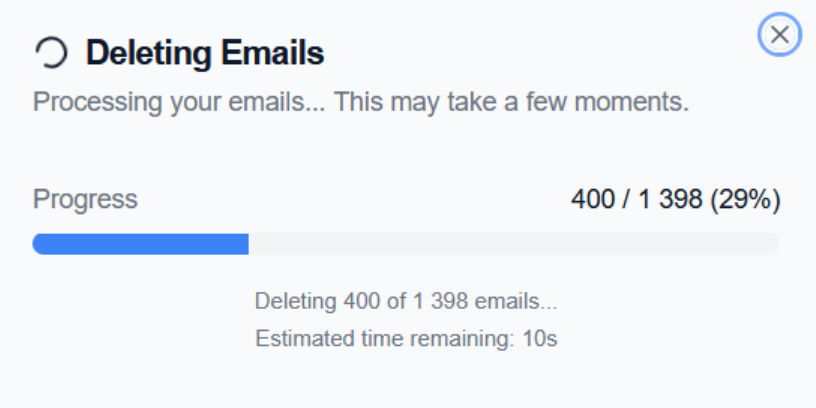
4. If there are emails in the selected categories, they will start moving to the Trash. You will see a progress bar that gradually fills in batches of 100 emails:
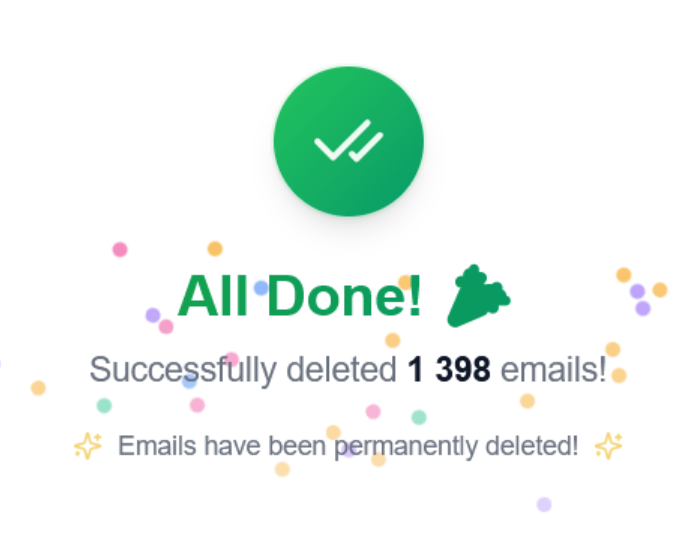
5. When processing is complete, you will see fireworks and a success message:
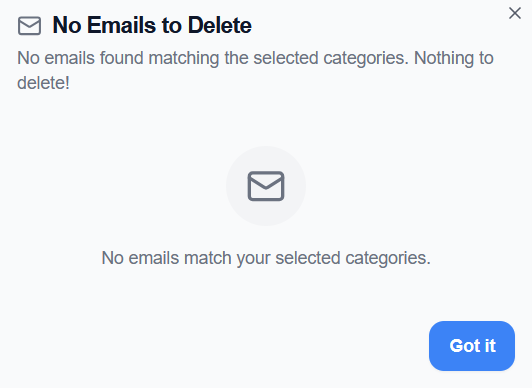
6. If there are no emails in the selected categories, you will see a corresponding message: