
How to Delete Emails in Gmail
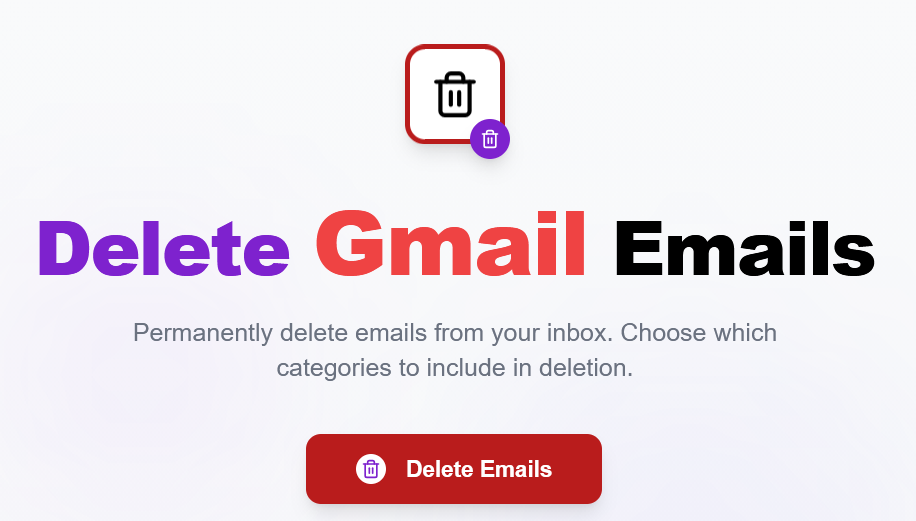
In our email accounts (Gmail, Bing, Yahoo, etc.), messages accumulate over time that we:
- haven’t read yet;
- have read but no longer consider useful;
- will never read.
The more time passes, the more emails pile up, taking up valuable storage space in the mail service (in Gmail it is 15 GB).
Considering that an email takes on average about 1.5 MB, this space is enough for only about 10,000 emails. If, like me, you receive about 5 emails per day on average, your storage will be completely full in just 5 years!
Fortunately, there is a solution that allows you to clean your entire mailbox with one button by selecting specific categories or everything at once.
How does it work?
1. Click the “Delete Emails” button:

2. Then sign in to Google and grant access to your Gmail account through the certified service – “Mail Application for Gmail™”.
Fun fact for those interested: the service was originally created for the Gmail App extension, but now it can be reused in any project that requires access to the Gmail API.
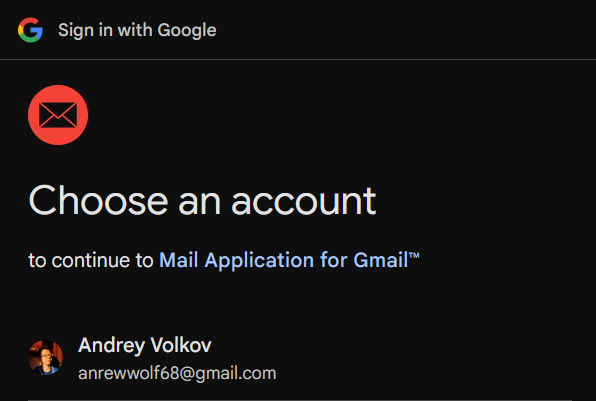
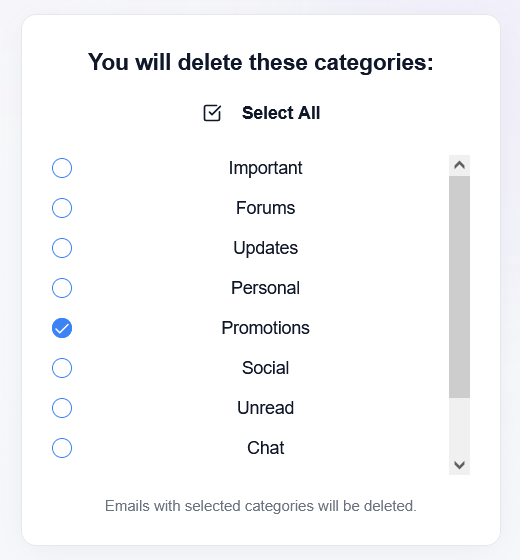
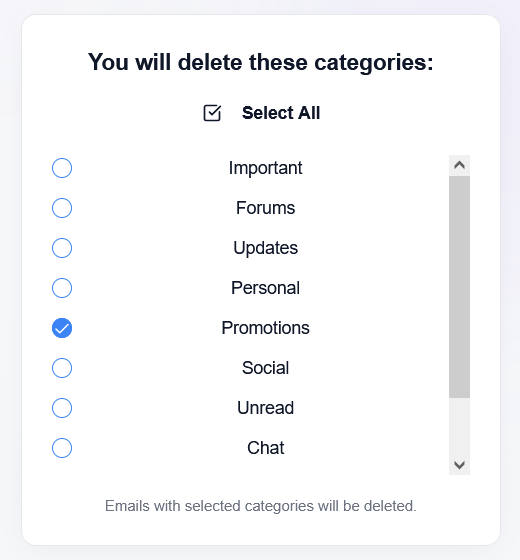
3. Next, you will see a list of system categories and folders you created. Choose the ones you want to delete from (all are selected by default):
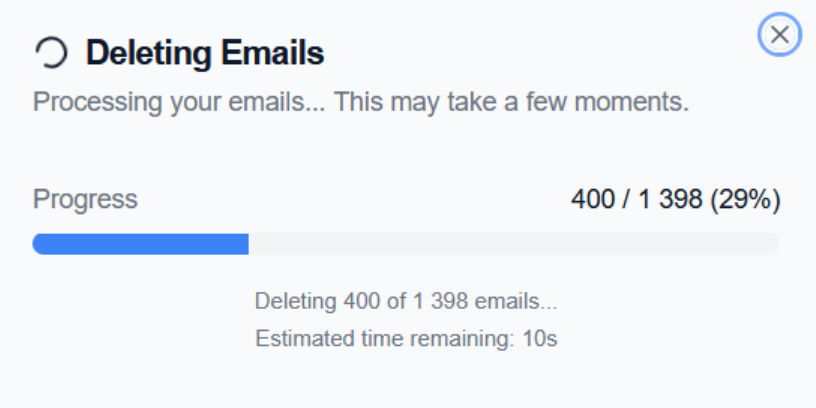
4. If there are emails in the selected categories, they will start moving to the Trash. You will see a progress bar that gradually fills in batches of 100 emails:
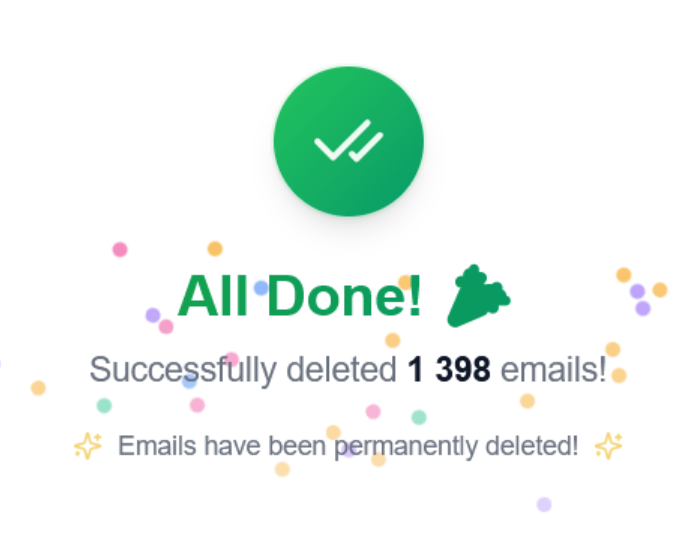
5. When processing is complete, you will see fireworks and a success message:
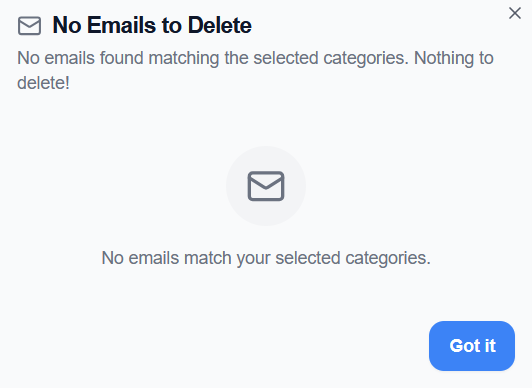
6. If there are no emails in the selected categories, you will see a corresponding message:
How is the service better than regular Gmail?
Regular Gmail web version
Let’s look at the steps required in native Gmail to move emails to the Trash by category using the “Updates” category as an example.
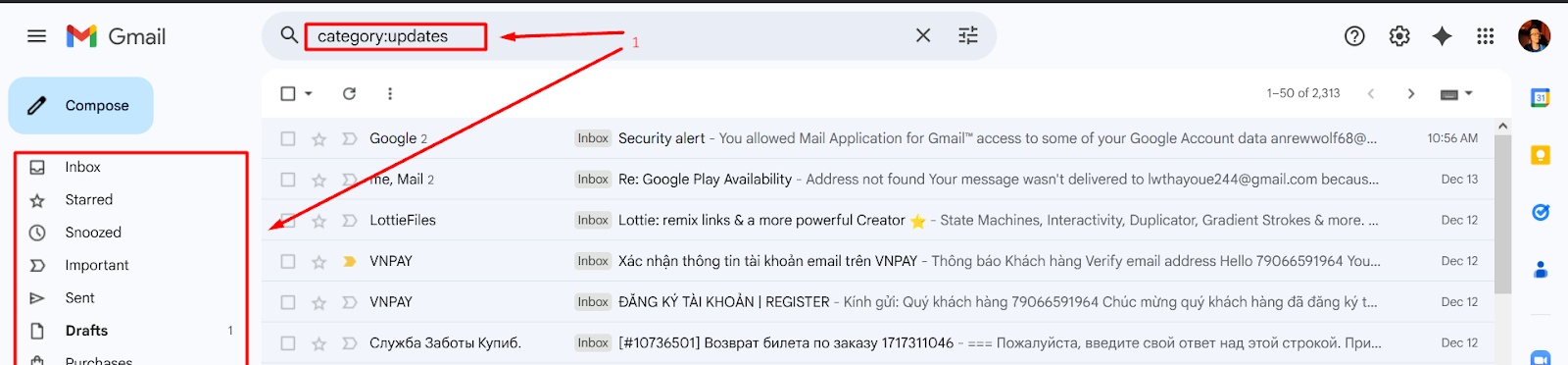
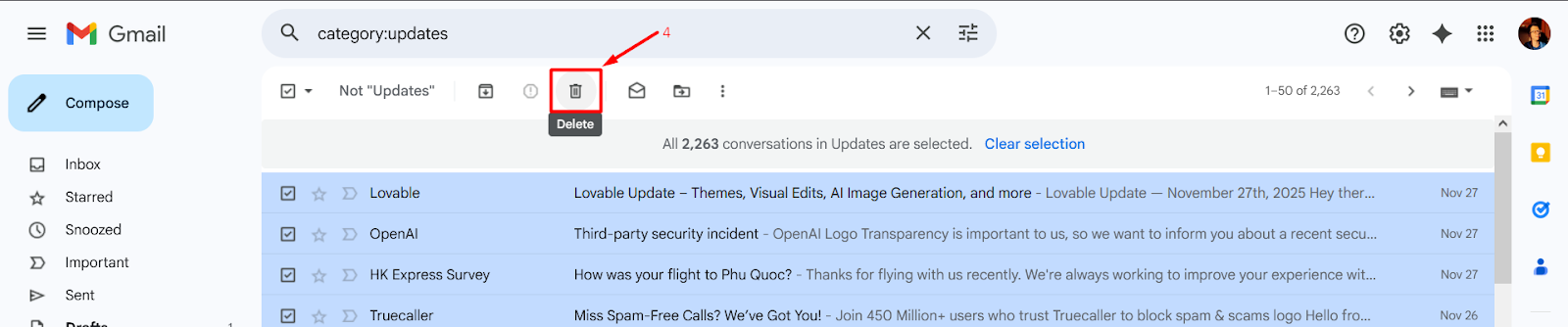
1. First, you need to open the required category (using the search bar and the filter category:updates or the left navigation menu, which is not very intuitive):
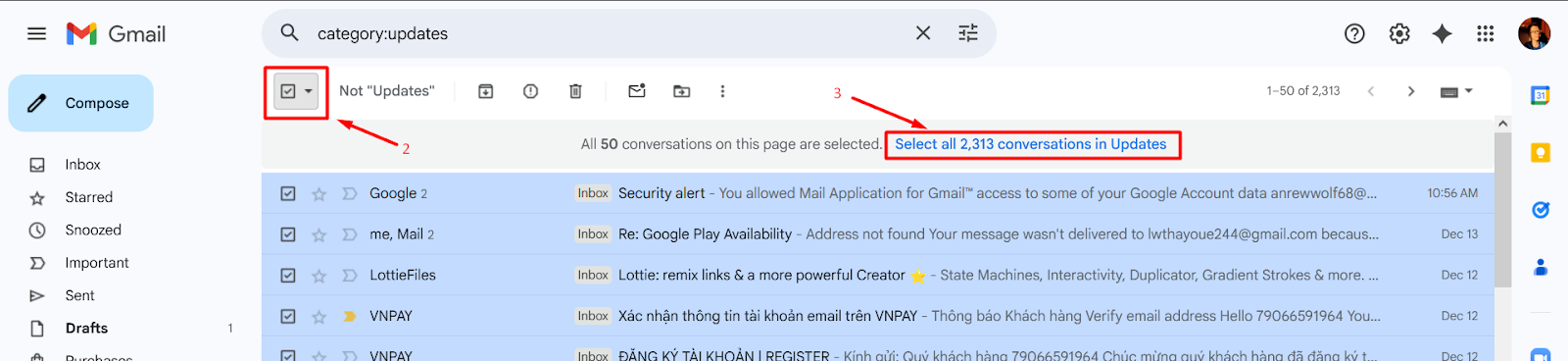
2. Then click the checkbox to select all emails on the page,
3. Next, click the (not very noticeable) blue link to select all emails in the mailbox:
4. Click the “Delete” button:
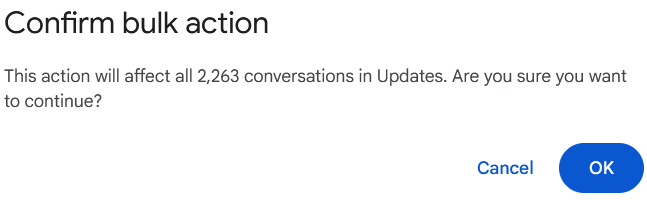
5. Confirm your action by pressing “OK” in a separate pop-up window:
6. And wait an unknown amount of time (Gmail may take timeouts while processing messages):

“Delete Gmail Emails” service
Now let’s look at the steps required to clean the mailbox using my service:
1. Press the large red button in the center of the screen:

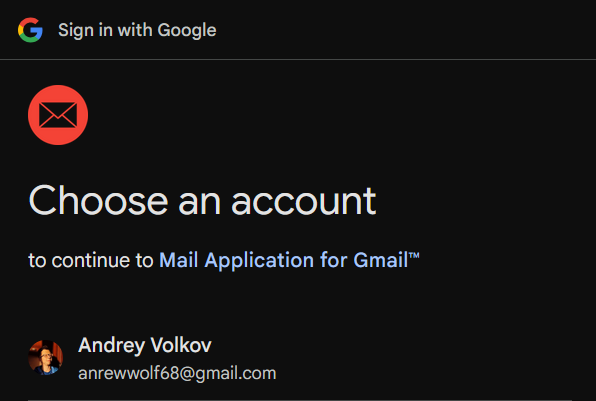
2. Sign in and grant access to our authorized service:
3. Select the categories you want to delete:
4. Finally, wait a few seconds while watching the clear and intuitive progress bar:
Final comparison
Number of actions
- Gmail: 5 actions
- “Delete Gmail Emails” service: 4 actions
Verdict
“Delete Gmail Emails” service is much easier to use and requires fewer actions than regular Gmail.
Task completion time
Number of emails to delete: ~2500 messages
- Gmail: ~2 minutes
- “Delete Gmail Emails” service: < 10 seconds!
Verdict
“Delete Gmail Emails” service works more than 10 times faster than the official Gmail web version.
Main features
- Standard authorization via Google OAuth v2.0 – all data goes through Google’s own servers
- Requests minimal permissions from the user – only
gmail.modify
- Includes a progress bar with a counter of processed emails – it’s clear how long you need to wait
- Displays client and Gmail service errors — if something goes wrong, you can understand the reason and fix it or contact us for help
- All emails can be restored to the desired category by moving them out of the Trash
- Works online, free, and with one button
Technical features
- All processing happens on the client side (no backend, all data goes directly from the browser to Google)
- Emails are processed in batches of 100 (more granular progress than standard 1000+ email requests, and no risk of Google account blocking due to spam-like requests)
Privacy
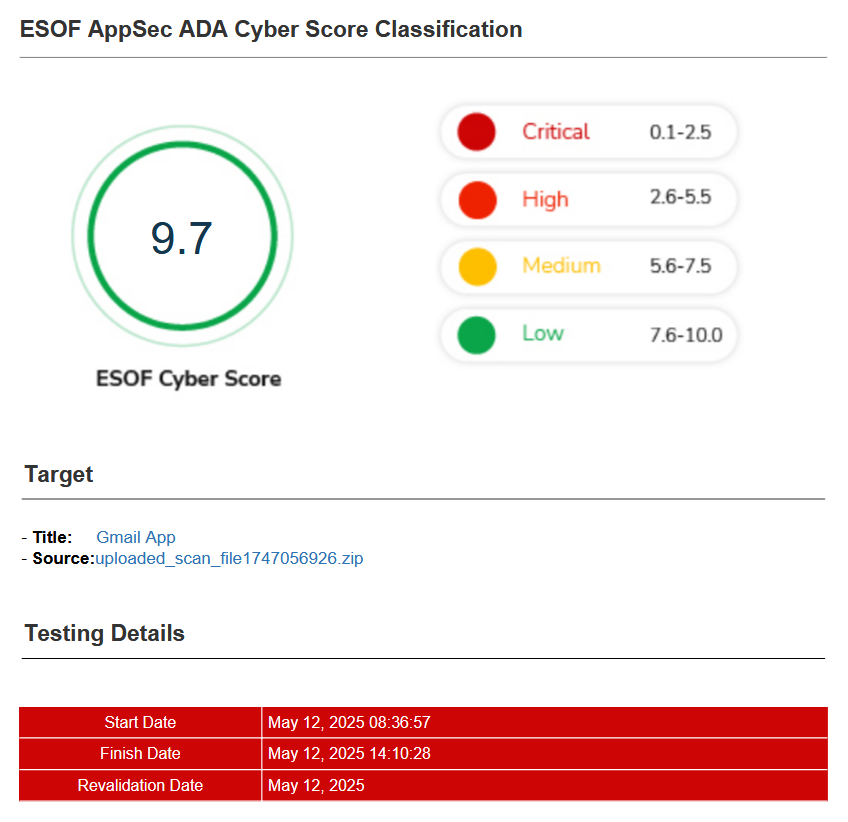
1. The service has passed CASA certification (Cloud App Security Assessment) and complies with the ESOF Cyber Score (9.7/10).
2. The service does not store any user information (processing happens locally in the browser, with requests sent directly to the authorized Google backend).