
How to Free Up Space in Gmail
Over time, incoming emails accumulate in our inbox:
- from regular messages without attachments (around 10-30 KB)
- to heavy emails with archives and photos (up to 25 MB – Gmail’s maximum attachment limit).
For an active user, after 2-3 years of using Gmail, the archive can take up 2 to 5 GB of space. Meanwhile, the free Google plan provides only 15 GB, shared between Gmail, Google Drive, and Google Photos.
It’s also important to remember that spam (which counts toward your storage quota) – especially with large attachments – can quickly fill up your available space!
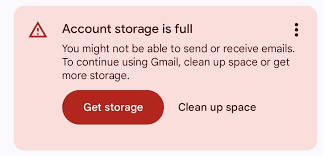
A typical situation: Google shows the notification “Account storage is full,” and the user doesn’t know what to do:
- How can I delete emails that take up the most space?
- What if I delete something important? How can I filter only old emails?
- It all feels complicated…
Fortunately, there is now a solution that allows you to quickly, easily, and with one click delete all old and “heavy” messages!
How does it work?
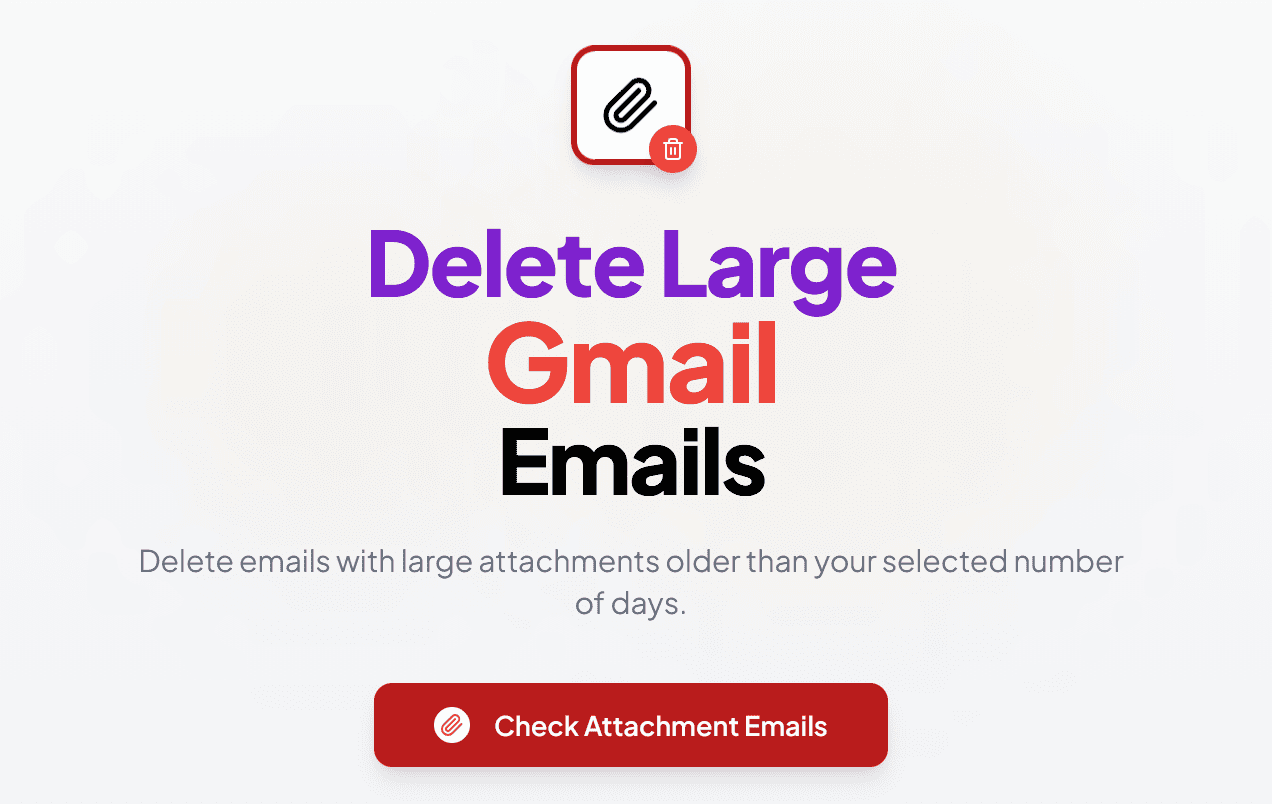
1. You click the “Check Attachment Emails” button:

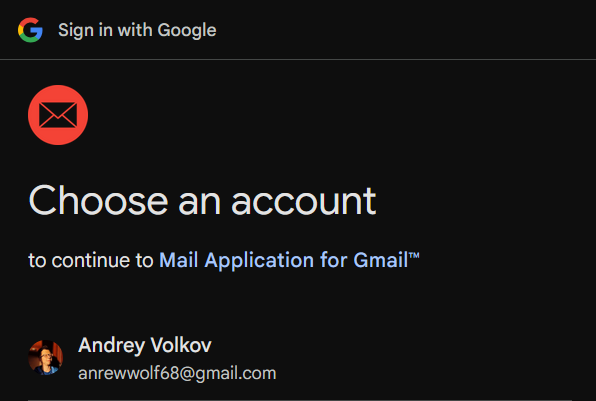
2. Then you sign in to Google and grant access to your Gmail account through the certified service “Mail Application for Gmail™”:
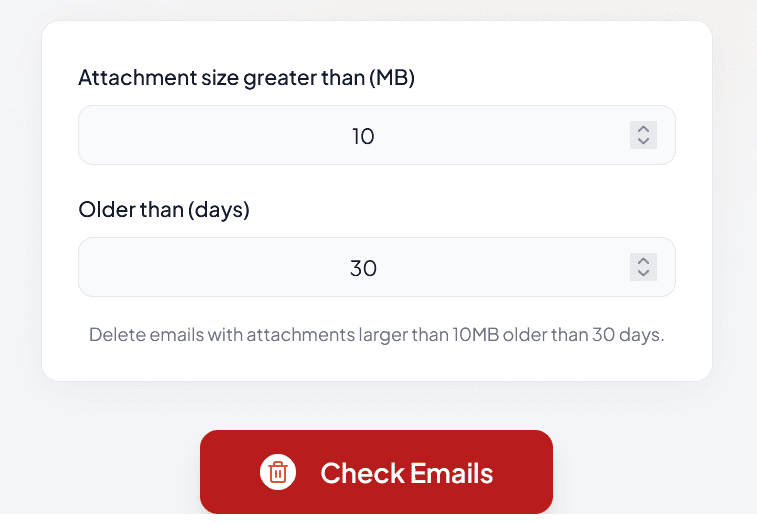
3. You specify the attachment size threshold (default – 10 MB) and the age of emails to search for (default – 30 days), then click “Check Emails”:
4. If emails matching your criteria are found, you can review them in a dropdown list and decide whether to delete them:
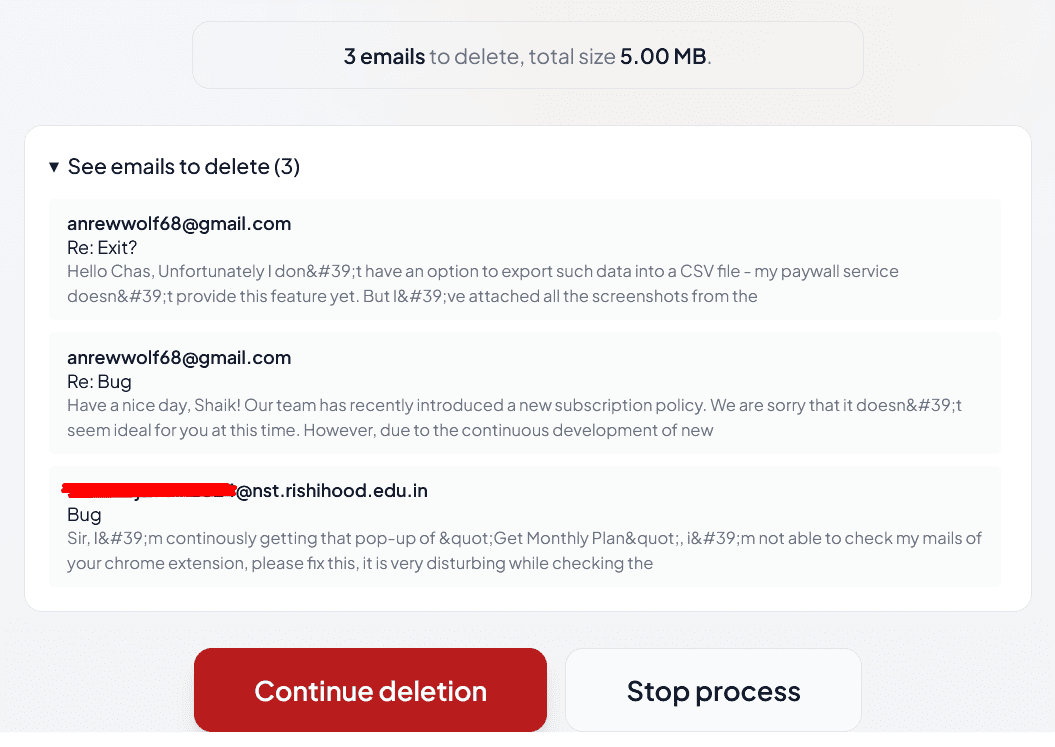
5. When you continue and click “Continue deletion,” you will see a progress bar gradually filling in batches of 100 messages:
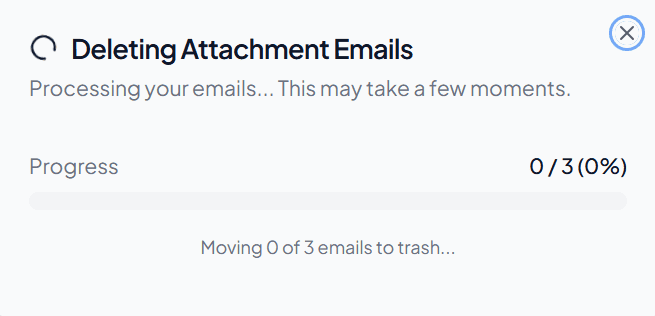
6. Once processing is complete, you will see a celebration animation and a success message:
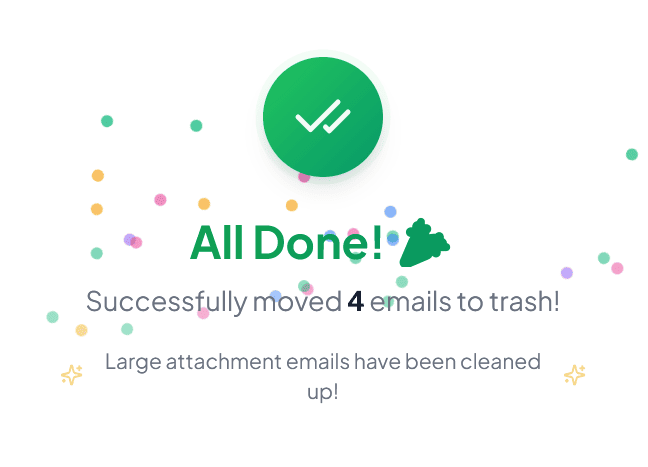
7. If you click “Stop process,” deletion will not be performed, and the service will return to its initial state.
8. If no emails match the selected criteria, you will see a corresponding message:
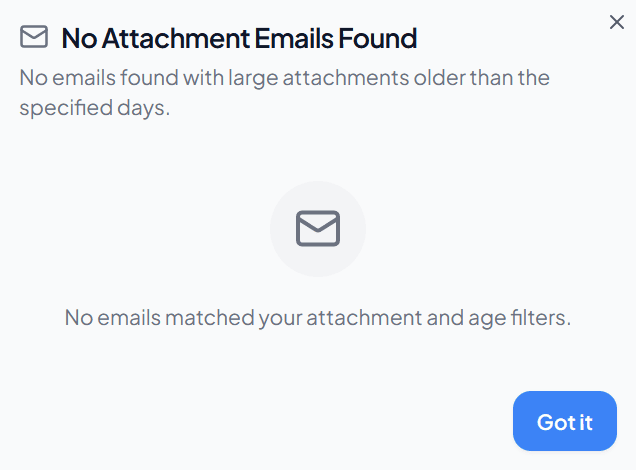
How is the service better than standard Gmail?
Standard Gmail Web Version
Let’s look at the sequence of actions in native Gmail to move old “heavy” emails to the Trash:
1. Enter a search filter, for example, to find emails with attachments larger than 1 MB and older than 30 days:
has:attachment larger:1M older_than:30d
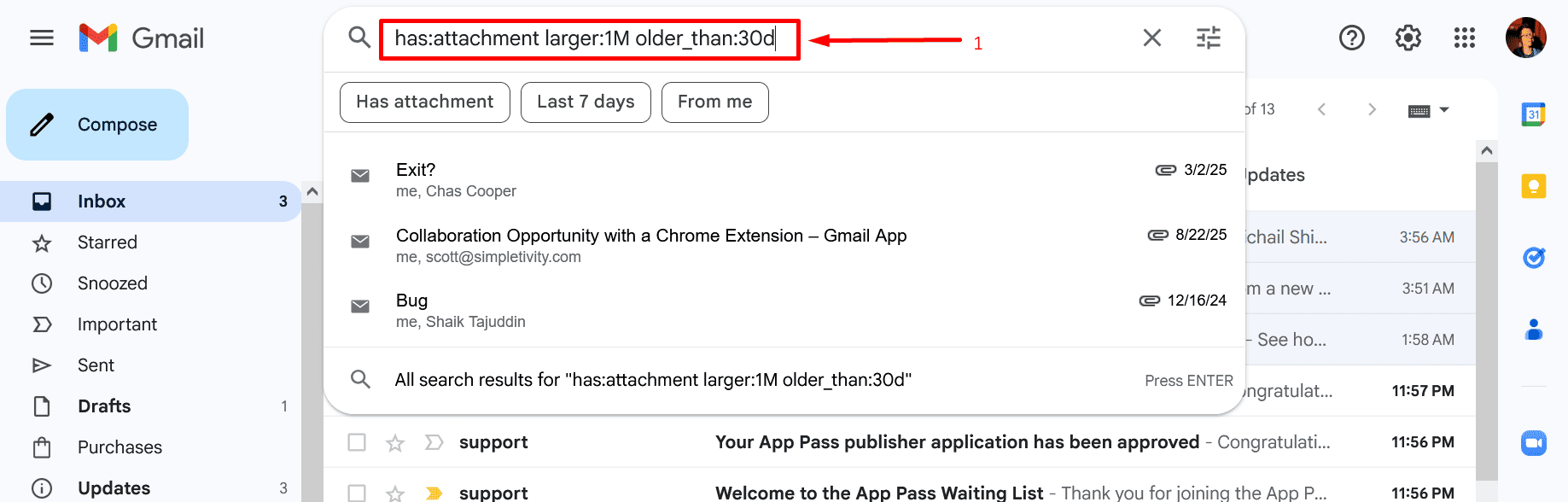
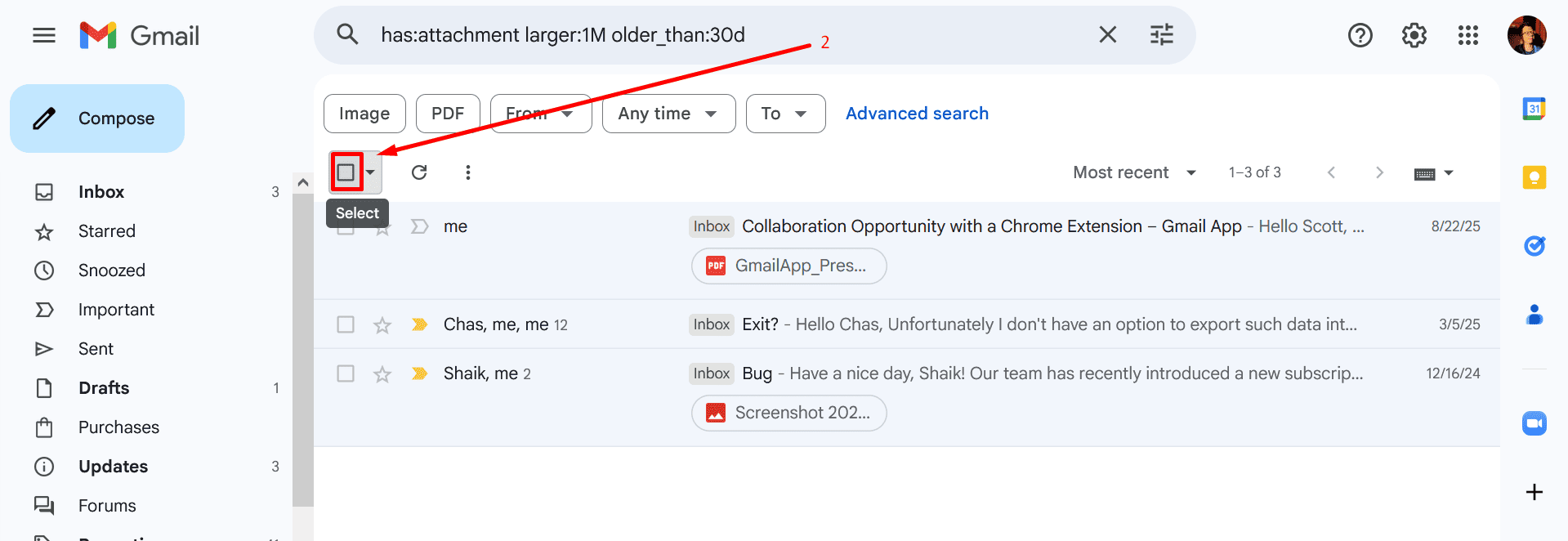
2. Click the checkbox to select all emails on the page:
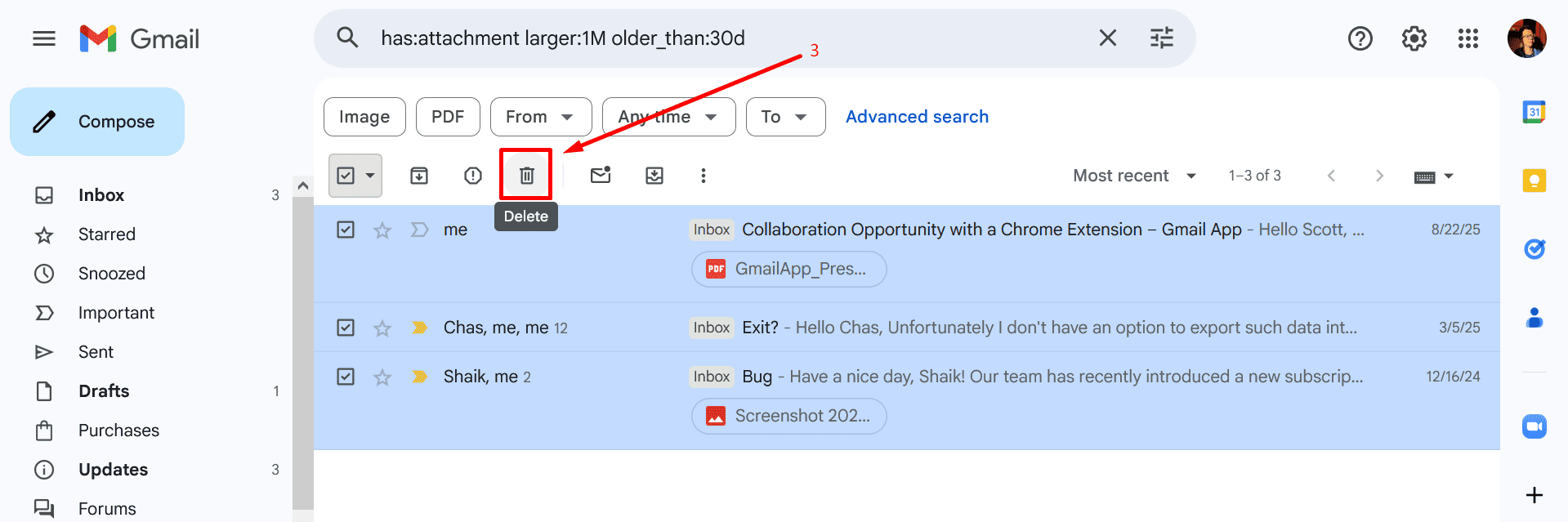
3. Click the “Delete” button:
4. If successful, you will see a confirmation message:

“Free Up Space in Gmail” Service
Now let’s review the steps required in my service:
1. Click the large red button in the center of the screen:
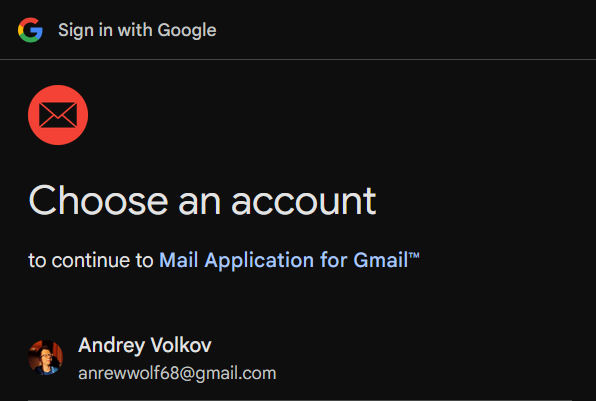
2. Sign in and confirm access for our authorized service to your Gmail:
3. Enter the email parameters for deletion:
4. Verify the selected emails:
5. Wait a few seconds while watching an intuitive progress bar:
Final Comparison
Number of Actions
- Gmail: 4 actions
- “Free Up Space in Gmail” Service: 4 actions
Verdict
The “Free Up Space in Gmail” service is much easier to use and requires the same number of actions as standard Gmail.
Task Completion Time
Number of emails to delete: ~2500 messages
- Gmail: ~2 minutes
- “Free Up Space in Gmail” Service: < 10 seconds!
Verdict
The “Free Up Space in Gmail” service works more than 10 times faster than the official Gmail web version.
Key Features
- Standard authorization via Google OAuth v2.0 – all data passes through Google’s own servers
- Requests minimal permissions – only
gmail.modify - The process can be stopped at any stage (via the “X” icon in the progress bar window)
- Progress bar with a counter of emails moved to Trash
- Displays client / Gmail service errors for transparency and troubleshooting
- All emails can be restored from the Trash
- Works online, free of charge, and with one click!
Technical Details
- All processing happens client-side (no backend; data goes directly from the browser to Google)
- Emails are processed in chunks of 100 messages (more granular progress tracking and no risk of Google account blocking due to bulk requests)
Privacy
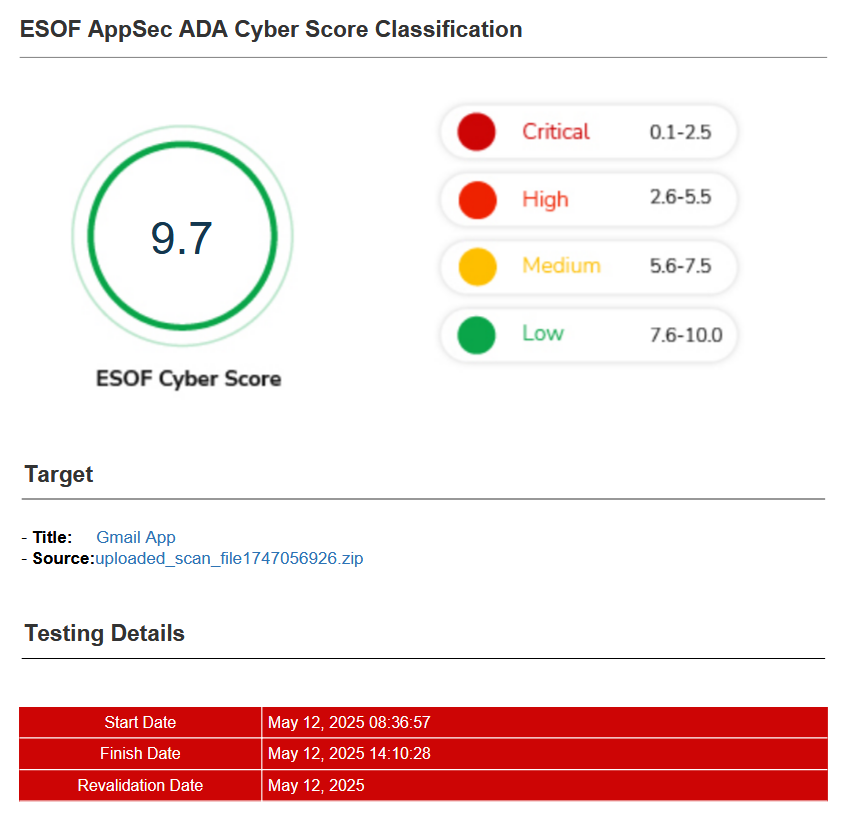
1. The service has passed CASA certification (Cloud App Security Assessment) with an ESOF Cyber Score of 9.7/10:
2. The service does not store any user information (processing happens in the browser with requests sent to the authorized Google backend).