
How to Manage Gmail Subscriptions
Every day, around 350 billion emails are sent worldwide, 45–50% of which are spam and newsletters.
From a marketing perspective, there are several facts that regular users rarely think about:
- The “Rule of Three”:
- Most major retailers try to send at least 3 emails per week to stay “top of mind” without being blocked.
- The “Graymail” Problem:
- About 60% of all legitimate email is “graymail” – messages that aren’t technically spam (you did sign up for them) but that you rarely or never open.
- Unsubscribe Rates:
- Despite the high volume, the average person only unsubscribes from 1 or 2 lists per month, preferring to simply ignore or bulk-delete messages instead.
Email users can be grouped by the number of newsletter emails in their inboxes as follows:
- The “Passive” User:
- Volume: 5-12 emails per day.
- Source: Registration at a few online stores, a bank, and perhaps one or two news digests.
- Behavior: Usually deletes them without opening or lets them pile up in the “Promotions” tab.
- The “Active” Consumer:
- Volume: 20–50 emails per day.
- Source: Retail loyalty programs, travel booking sites, educational platforms (Coursera / Udemy), and social media notifications (LinkedIn / Facebook digests).
- Reality: This user is often the target of “drip campaigns” – a series of 3-5 emails sent over a week after looking at a single product.
- The “Information Junkie”:
- Volume: 50+ emails per day.
- Source: Paid Substack newsletters, industry reports, webinar invites, and Medium digests.
- Reality: These are often intentional subscriptions, but the sheer volume makes it impossible to read everything.
People in each of these categories suffer from an overwhelming number of incoming emails, but often don’t know:
- What should they do about it?
- How can they unsubscribe from all newsletters?
- How can they unsubscribe from at least some of them without spending several hours of their life?
Fortunately, there is a solution that allows you to unsubscribe from your newsletters with one click – either from selected senders or from all of them at once!
How does it work?
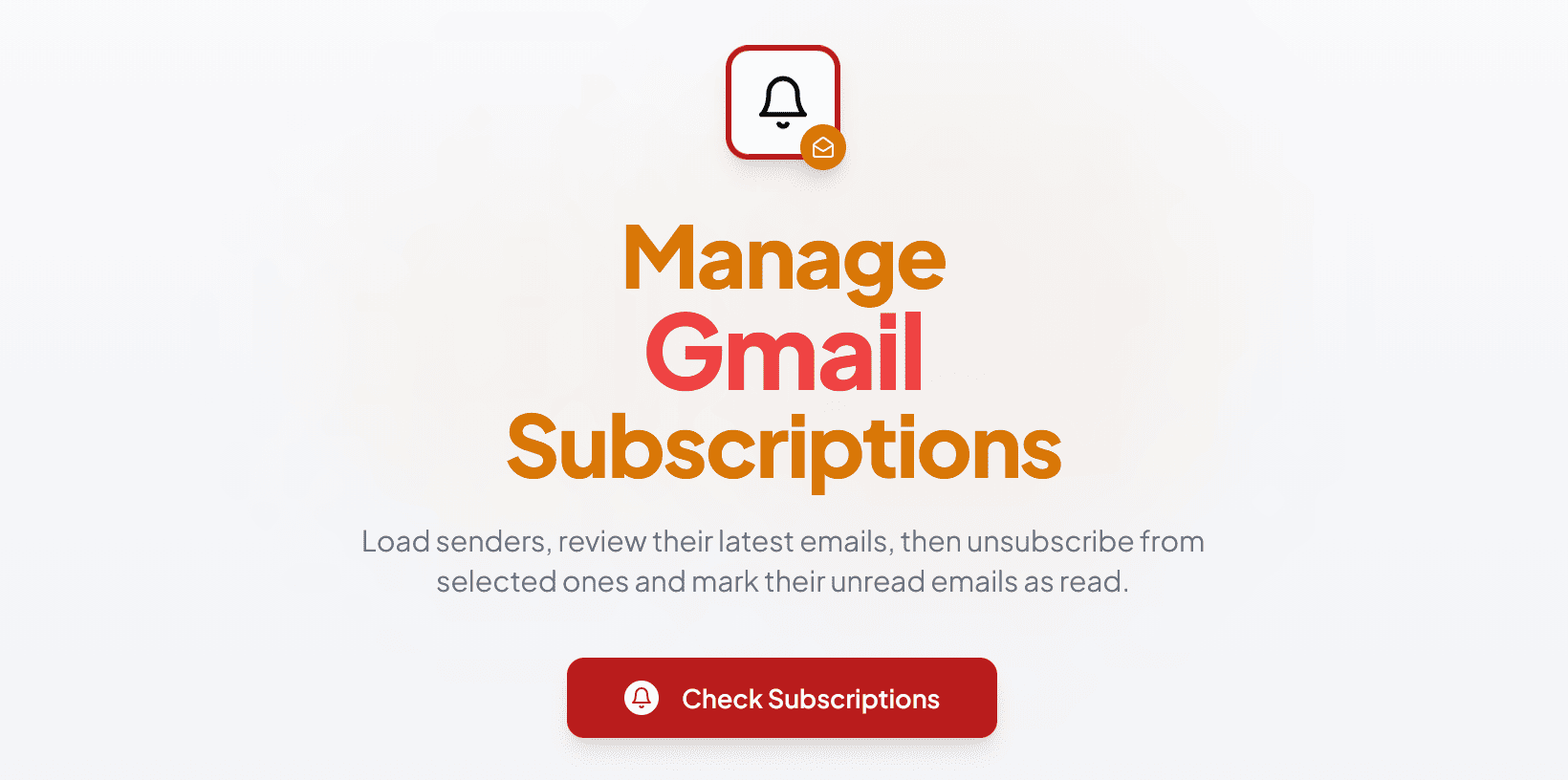
1. You click the “Check Subscriptions” button:

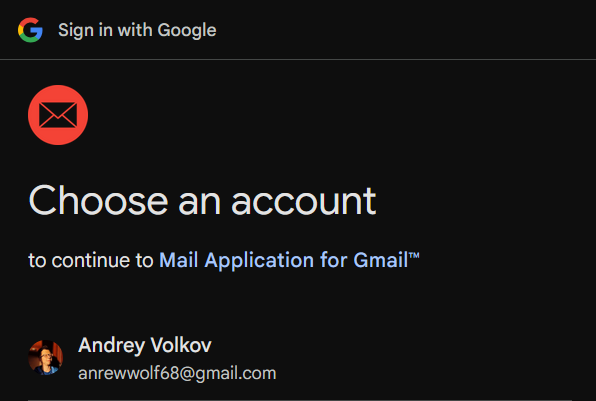
2. Then you sign in to Google and grant access to your Gmail account through the certified service “Mail Application for Gmail™”:
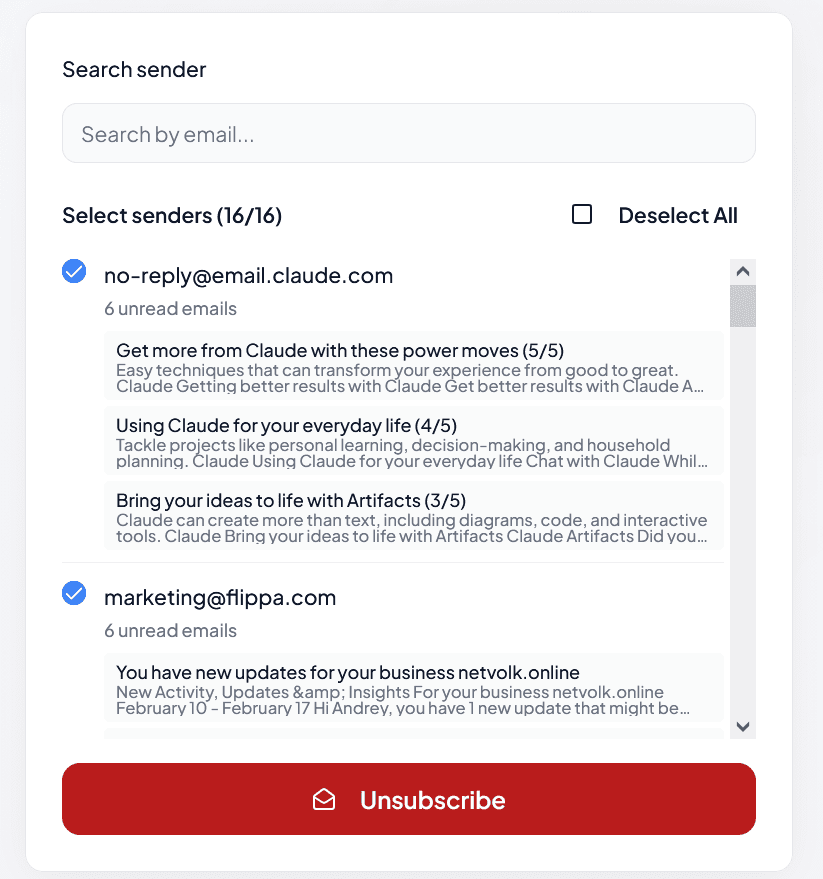
3. You will see a list of newsletter senders (with the latest emails received from them) and select the ones you want to unsubscribe from (all are selected by default):
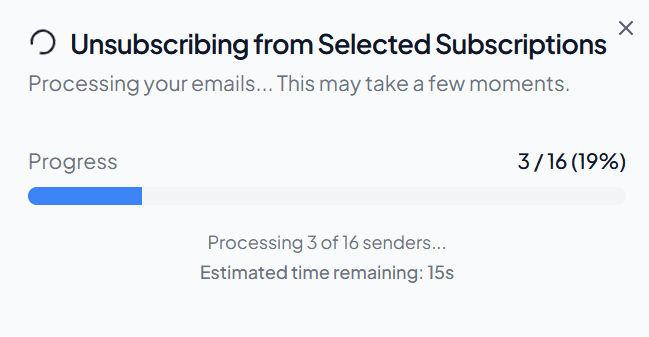
4. The unsubscribe process starts for the selected senders, and all their emails are marked as read. You will see a progress bar gradually filling up:
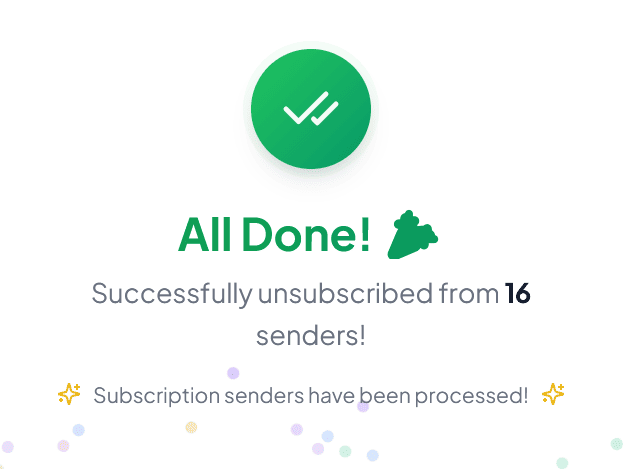
5. When the process is complete, you will see a celebration animation and a message confirming successful unsubscription:
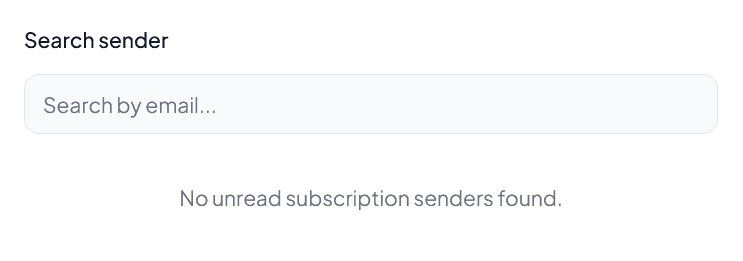
6. If you have no unread newsletters available for unsubscription, you will see a corresponding message:
How is the service better than standard Gmail?
Standard Gmail Web Version
Let’s look at the sequence of actions required in native Gmail to unsubscribe from several newsletters:
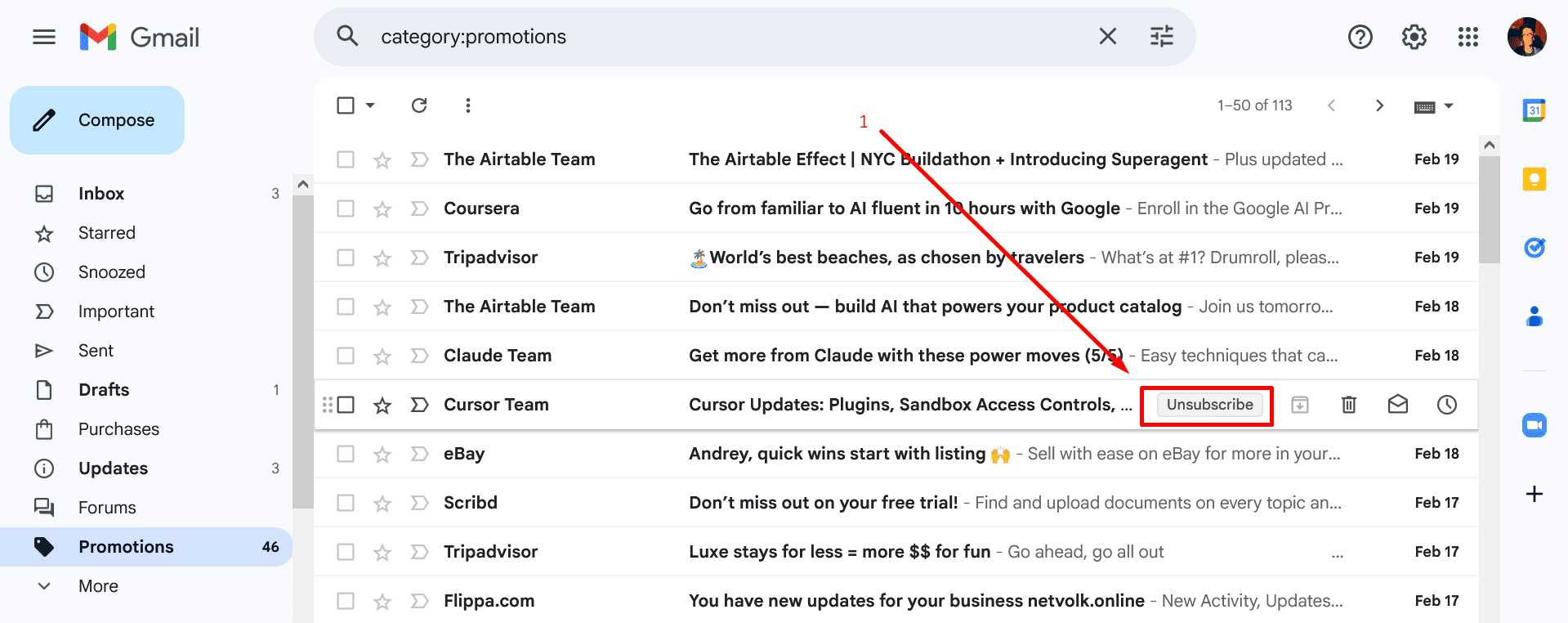
1. Hover over an email from the sender you want to unsubscribe from and click “Unsubscribe”:
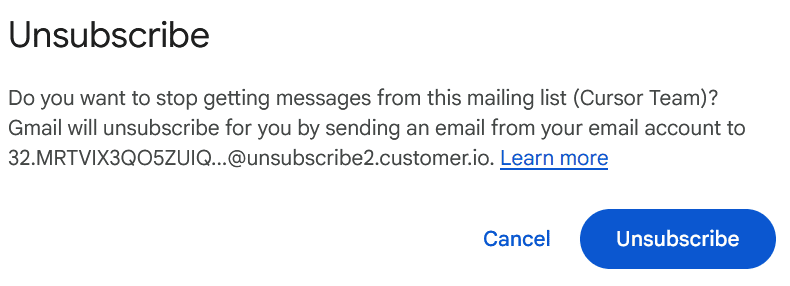
2. Confirm your intention by clicking the “Unsubscribe” button again:
3. If successful, you will see a confirmation message in the lower-left corner of the screen:

4. Repeat steps 1–3 for every sender you want to unsubscribe from.
However, after completing these steps, emails from those senders will still remain unread in your inbox.
To mark all emails from specific senders as read, you must also perform additional actions described in the article: How to Mark All Emails as Read from One Sender in Gmail.
“Subscription Management in Gmail” Service
Now let’s review the steps required in my service:
1. Click the large red button in the center of the screen:
2. Sign in and confirm access for our authorized service to your Gmail:
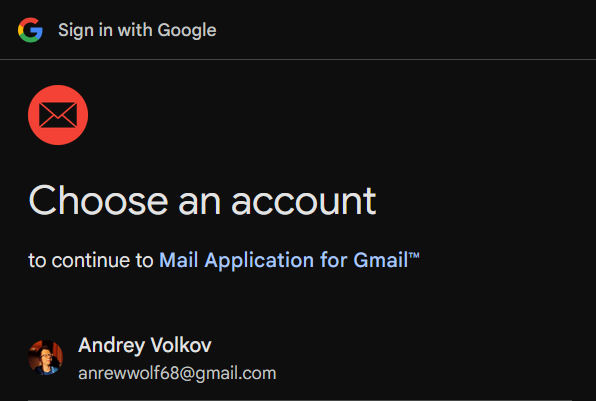
3. Select the senders you want to unsubscribe from:
4. Wait a few seconds while watching an intuitive progress bar (emails will be marked as read automatically):
Final Comparison
Number of Actions
- Gmail:
(3 + 5) × number of senders - “Subscription Management in Gmail” Service: 4 actions
Verdict
The “Subscription Management in Gmail” service is much easier to use and requires dozens of times fewer actions than standard Gmail!
Task Completion Time
Number of newsletters to unsubscribe from: 16 senders
- Gmail: ~15 minutes (including marking all emails as read)
- “Subscription Management in Gmail” Service: < 10 seconds!
Verdict
The “Subscription Management in Gmail” service works almost 100 times faster than the official Gmail web version.
Key Features
- Standard authorization via Google OAuth v2.0 – all data passes through Google’s own servers
- Requests minimal permissions from the user – only
gmail.modify
- Progress bar with a counter of processed senders – intuitive understanding of remaining time
- Displays client/Gmail service errors – if something goes wrong, you can see the reason and fix it or contact us
- For each sender, you can view snippets from the last three emails to make an informed decision
- All emails from selected senders are marked as “Read,” reducing the unread counter
- Works online, free of charge, and with one click!
Technical Details
- All processing happens client-side (no backend; all data goes directly from the browser to Google)
- When searching for newsletter senders, the service checks for the
List-Unsubscribeheader
- When unsubscribing, the service sends a POST request to the URL specified in that header (if supported via
List-Unsubscribe-Post: One-Click); otherwise, it sends a GET request
Privacy
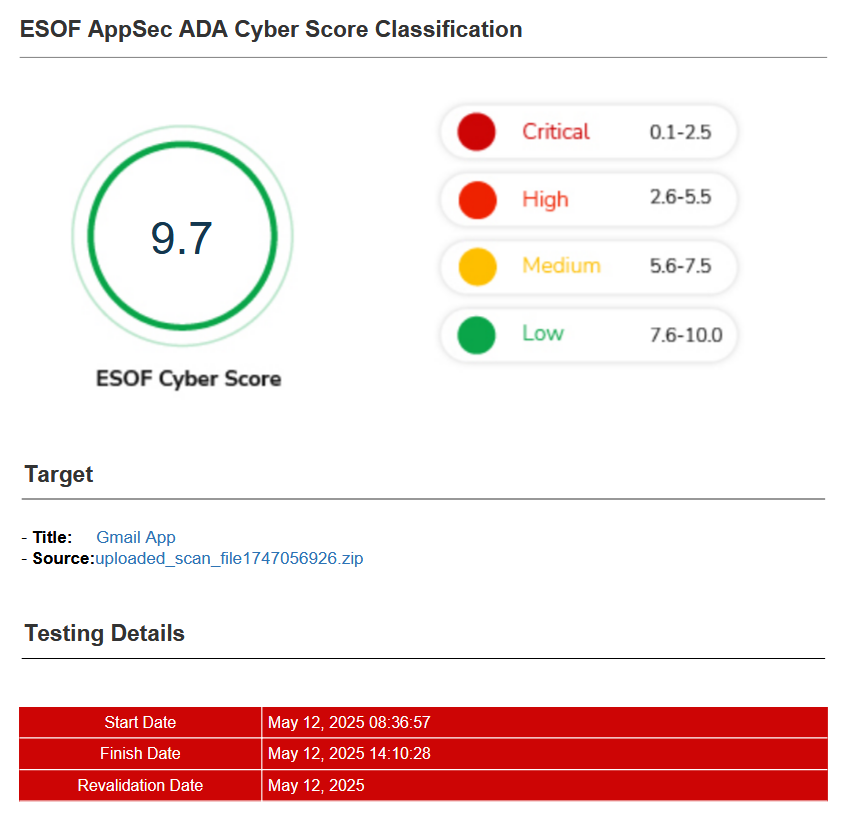
1. The service has passed CASA certification (Cloud App Security Assessment) in compliance with the ESOF Cyber Score (9.7/10).
2. The service does not store any user information (processing happens in the browser, with requests sent to the authorized Google backend).